How to Choose the Right HubSpot Website Theme
 Flexoraa
Choosing a HubSpot website theme is more than choosing a design you like.
The right theme can make it easier to build pages, launch campaigns, maintain your brand, and let your marketing team make changes without depending on a developer for every small update.
The wrong theme can have the opposite effect. You may discover that the templates you need are missing, modules are too restrictive, mobile layouts require extra work, or simple design changes require custom development.
That's why you shouldn't choose a HubSpot website theme based only on its homepage or marketplace screenshots.
You should evaluate the theme based on what you can build, how easily you can manage it, and whether it can support your website as it grows.
This guide walks through the most important things to check before choosing a HubSpot website theme.
The Short Answer: What Should You Look for in a HubSpot Theme?
Before getting into the details, here's a simple framework.
A good HubSpot website theme should provide a balance of:
- Design: Does it look professional and fit your brand?
- Templates: Does it provide the page types you actually need?
- Modules: Can you build the sections your website requires?
- Customization: Can you adapt the design without rebuilding everything?
- Responsive design: Does it work properly across desktop, tablet, and mobile?
- Global styling: Can you manage your brand consistently?
- Performance: Does it provide a sensible technical foundation?
- SEO: Does the structure support good SEO practices?
- Documentation: Can you understand how to use and configure it?
- Support: Can you get help when something goes wrong?
- Updates: Is the theme actively maintained?
- Scalability: Can the theme support your website as it grows?
The goal isn't to find the theme with the most features.
The goal is to find the theme that provides the right features and the right amount of flexibility for your website.
What Is a HubSpot Website Theme?
A HubSpot website theme is a collection of website assets that work together to provide a consistent design and editing experience.
Depending on the theme, this can include:
- Website templates
- Blog templates
- Custom modules
- Sections
- Headers and footers
- Global content
- Theme settings
- Typography controls
- Color settings
- Button styles
- Responsive controls
- CSS and JavaScript
- Reusable components
Think of a theme as the foundation of your website.
Instead of starting every page from a blank canvas, you get a predefined design system and a collection of building blocks that you can use to create your website.
However, not every theme provides the same level of flexibility.
Some themes are designed for simple websites. Others are built for larger marketing websites with multiple page types, landing pages, campaigns, blogs, and more advanced customization requirements.
If you're new to HubSpot CMS, it's useful to understand how HubSpot CMS works before comparing themes.
10 Things to Check Before Choosing a HubSpot Website Theme
1. Look Beyond the Design
Design is usually the first thing you notice when looking at a HubSpot theme.
That's natural.
A professional visual design can make your website look more credible and can give your team a strong starting point.
But a good-looking homepage doesn't necessarily mean the theme is right for your business.
Look at the complete design system.
Check for:
- Clear visual hierarchy
- Consistent spacing
- Readable typography
- Professional navigation
- Well-designed buttons
- Consistent components
- Good use of whitespace
- Mobile-friendly layouts
- Consistent page structures
Then ask a more important question:
Can this design become my website?
Your website needs to represent your brand, not the theme vendor's brand.
Look at how easily you can change colors, typography, spacing, layouts, sections, images, and content.
What to check
Don't evaluate only the homepage.
Explore the:
- About page
- Services or product pages
- Landing pages
- Blog
- Contact page
- Pricing pages
- Other available templates
Red flag
A theme may look impressive in a marketplace screenshot but give you very little control once you start editing it.
A beautiful design with poor flexibility can become a problem later.
2. Check Which Templates Are Actually Included
Templates determine the starting structure for different types of pages.
Before choosing a theme, make a list of the pages your website needs.
For example:
- Homepage
- About page
- Services page
- Product page
- Pricing page
- Contact page
- Landing pages
- Blog listing
- Blog post
- Search page
- Thank-you page
- Error pages
Then compare that list with the templates included in the theme.
But don't judge a theme simply by the number of templates.
A theme advertising 30 templates isn't necessarily more useful than one with 15.
What matters is whether the templates are relevant to your website.
For example, a SaaS company may need product, feature, pricing, and conversion-focused landing pages.
An agency may need services, case studies, team, portfolio, and lead-generation pages.
A healthcare company may need service, provider, location, and resource pages.
What to check
Ask:
Does this theme give me a useful starting point for the pages I actually need?
Also check whether the templates are genuinely different or simply variations of the same layout.
Red flag
Don't choose a theme because it has the highest template count.
Choose the theme with templates that reduce the amount of work you'll actually have to do.
3. Evaluate the Modules, Not Just the Module Count
Modules are the building blocks you use to create pages.
Depending on the theme, you might find modules for:
- Hero sections
- Content sections
- Cards
- Testimonials
- Pricing tables
- FAQs
- Team members
- Logos
- Statistics
- Galleries
- Forms
- CTAs
- Sliders
- Tabs
- Feature sections
It's tempting to compare themes by saying:
Theme A has 50 modules and Theme B has 30.
But module count alone doesn't tell you much.
A theme with fewer, more flexible modules can be more useful than a theme with dozens of highly specialized modules.
What to check
For each important module, ask:
- Can I change the layout?
- Can I control spacing?
- Can I change alignment?
- Can I change colors and backgrounds?
- Can I add or remove content?
- Can I control images?
- Can I change the number of items?
- Does it have responsive controls?
- Can I reuse it on different pages?
The important question
Can these modules help me build the pages my business needs?
That's more important than the total number of modules.
4. Check How Much You Can Customize
Customization is one of the biggest differences between HubSpot themes.
A theme may provide excellent templates and modules, but if everything is locked down, your website can quickly start looking like every other website using the same theme.
Look for three levels of customization.
Global settings
Can you control things such as:
- Primary colors
- Secondary colors
- Typography
- Heading styles
- Body text
- Buttons
- Container widths
- Spacing
- Header
- Footer
Module settings
Can you control:
- Layout
- Alignment
- Content
- Images
- Backgrounds
- Spacing
- Typography
- Buttons
- Responsive behavior
Page-level flexibility
Can you:
- Rearrange sections?
- Create unique page layouts?
- Build landing pages?
- Combine different modules?
- Create campaign-specific pages?
- Customize headers and footers?
- Add sections without modifying the entire theme?
The more useful control you have, the easier it is to adapt the theme to your business.
But there's an important balance.
More settings don't automatically mean a better theme
A theme with thousands of confusing options can be harder to use than a theme with a smaller number of well-organized controls.
The goal is useful flexibility, not complexity.
5. Test the Responsive Design
Your website won't be viewed only on a desktop computer.
Visitors may use:
- Desktop computers
- Laptops
- Tablets
- Smartphones
That's why responsive behavior should be one of the most important things you test.
Don't rely on desktop screenshots.
Open the actual demo and check the pages at different screen sizes.
Look for:
- Text becoming too small
- Buttons becoming difficult to tap
- Images overflowing
- Sections becoming too crowded
- Navigation becoming difficult to use
- Unexpected horizontal scrolling
- Poor spacing
- Broken layouts
- Elements appearing in the wrong order
A page can look excellent on a large monitor and still provide a poor mobile experience.
A simple test
Check the same page at:
Desktop → Tablet → Mobile
Pay particular attention to the pages that matter most to your business.
Don't test only the homepage.
Test a landing page, content-heavy page, form page, blog page, and any other important template.
6. Look at Global Styling
A professional website should feel consistent.
Imagine changing your brand's primary color.
If you have to manually update that color on dozens of pages, maintaining the website becomes inefficient.
That's why global styling matters.
A good theme should make it practical to manage important design elements consistently.
Look for controls for:
- Primary colors
- Secondary colors
- Typography
- Headings
- Body text
- Buttons
- Links
- Spacing
- Containers
- Global components
The exact implementation will vary between themes, but the principle is the same:
Your website should behave like one design system, not a collection of unrelated pages.
Global styling becomes even more important as your website grows.
Changing the visual identity of a 10-page website manually may be manageable.
Doing the same thing across a much larger website can become a significant maintenance task.
7. Consider Performance
A visually impressive website isn't useful if it performs poorly.
Before choosing a theme, consider how it handles:
- Images
- CSS
- JavaScript
- Fonts
- Animations
- Sliders
- Third-party scripts
- Responsive assets
However, there's an important distinction:
A theme can provide a good technical foundation, but it cannot guarantee that every website built with it will be fast.
Your final website performance can also depend on:
- The images you upload
- Third-party integrations
- Custom scripts
- Tracking tools
- Videos
- Animations
- The number of elements on a page
- Custom development
That's why you should test the actual theme rather than assuming that a marketplace preview represents every possible configuration.
What to check
Test important demo pages and look for obvious performance issues.
If possible, test multiple page types rather than measuring only the homepage.
The goal is to choose a theme that gives you a sensible performance foundation while leaving room to build responsibly.
8. Consider SEO: But Don't Expect the Theme to Do Everything
A HubSpot theme can influence the technical and user-experience foundation of your website.
However, a theme does not automatically make a website rank well.
When evaluating a theme, look for:
- Clean page structures
- Proper heading usage
- Responsive layouts
- Fast-loading components
- Crawlable content
- Flexible metadata options
- SEO-friendly templates
- Blog support
- Logical page structures
- Opportunities for internal linking
But remember:
A theme supports SEO. It doesn't replace an SEO strategy.
Your search performance also depends on:
- Search intent
- Keyword targeting
- Content quality
- Internal linking
- Technical SEO
- Website authority
- Backlinks
- Page experience
- Ongoing optimization
A good theme gives you a better foundation.
It doesn't do the SEO work for you.
9. Check Documentation and Support
Documentation is easy to ignore when you're excited about a theme's design.
You may think:
"I'll figure it out after I buy it."
That's not always a good idea.
Even a flexible theme can become frustrating if you don't understand how its settings, templates, and modules work.
Before buying, check whether the theme provides:
- Documentation
- Setup instructions
- Tutorials
- FAQs
- Troubleshooting information
- Changelog
- Support channels
- Feature information
Then ask yourself:
If I get stuck six months from now, will I know where to look for help?
Good documentation can save significant time for both marketers and developers.
Support is particularly important if the theme is going to become the foundation of your company's website.
10. Check Updates and Long-Term Scalability
Don't evaluate a theme only for the day you purchase it.
Think about your website one, two, or even three years from now.
Your website may start with 10 pages and eventually grow to 50, 100, or more.
You may also add:
- New landing pages
- New campaigns
- New products
- New blog content
- New forms
- New integrations
- New team members
- New design requirements
Your theme should provide enough flexibility to accommodate that growth.
Check the theme's maintenance activity
Look for:
- Recent updates
- Bug fixes
- New features
- Compatibility improvements
- Documentation updates
- Clear version information
- Evidence of ongoing development
You don't necessarily need a theme that receives constant changes.
But you should have confidence that the theme isn't simply abandoned after purchase.
Think beyond today's website
The best theme isn't necessarily the one that looks best today.
It's the one that still makes sense as your website evolves.
Free vs. Paid HubSpot Themes
Once you've identified the features you need, you'll probably face another decision:
Should I choose a free HubSpot theme or pay for one?
There isn't one answer for every business.
A free theme may be enough when:
- Your website requirements are simple
- You have a limited budget
- You need a basic starting point
- You are comfortable with additional customization
- You don't need many specialized components
A free theme can be a perfectly reasonable choice for a small or straightforward website.
A paid theme may make more sense when:
- You need more templates
- You need more flexible modules
- You want more customization options
- You want a more established design system
- You need additional documentation or support
- You want to reduce development time
- Your website has more complex marketing requirements
The important thing is not to assume that paid = better or free = worse.
Compare the actual value.
Think about:
Features + Flexibility + Support + Documentation + Time Saved
That gives you a more useful comparison than price alone.
For a deeper comparison, you can also read our guide on Free vs. Paid HubSpot Themes.
HubSpot Theme vs. Custom Development
Another important decision is whether you should buy a pre-built theme or build your website from scratch.
A pre-built HubSpot theme can provide:
- A faster starting point
- Existing templates
- A predefined design system
- Reusable modules
- Less repetitive development
- Faster website launches
Custom development can provide:
- Greater control
- Unique functionality
- Custom architecture
- Highly specialized experiences
- More control over the implementation
But custom development can also require more:
- Design work
- Development
- Testing
- Maintenance
- Budget
- Time
Neither approach is automatically better.
The right choice depends on your requirements.
A useful way to think about it
If your requirements fit within an existing theme, a flexible pre-built theme can save significant time.
If your website requires highly specialized functionality that existing themes cannot reasonably provide, custom development may make more sense.
For many businesses, the practical middle ground is a flexible theme that provides a strong foundation while still allowing customization.
How to Test a HubSpot Theme Before Buying
This is where many buyers make a mistake.
They visit the homepage, think:
"It looks good."
And buy it.
Instead, use a structured evaluation process.
Step 1: Explore the Entire Demo
Don't look only at the homepage.
Visit:
- About pages
- Service pages
- Product pages
- Landing pages
- Blog pages
- Contact pages
- Other available templates
Try to understand how the theme works as a complete website.
Step 2: Test the Theme on Mobile
Open the actual demo on your phone.
Check:
- Navigation
- Typography
- Buttons
- Images
- Spacing
- Forms
- Sections
- Cards
- Sliders
Don't assume that a desktop preview tells you how the mobile experience works.
Step 3: Review the Templates
Find out exactly what is included.
Make a list of your required pages and compare them with the available templates.
Don't count templates.
Compare their usefulness.
Step 4: Review the Modules
Look at the available modules.
Ask whether you can build:
- Your homepage
- Your service/product pages
- Your landing pages
- Your conversion sections
- Your content sections
- Your campaign pages
If you can't build the pages you need without significant custom development, the theme may not be the right fit.
Step 5: Test Customization
Find out what you can actually change.
Don't rely on statements such as:
"Fully customizable."
Test it.
Try changing:
- Colors
- Typography
- Spacing
- Layouts
- Images
- Content
- Buttons
- Sections
- Header
- Footer
The actual editing experience matters more than the marketing description.
Step 6: Read the Documentation
Before purchasing, look at the documentation.
Try to understand:
- How the theme is installed
- How templates work
- How modules work
- How global settings work
- How updates are handled
- Where you can get support
This can tell you a lot about the quality of the product.
Step 7: Check Updates and Maintenance
Look for evidence that the theme is actively maintained.
Check:
- Recent updates
- Changelog
- New features
- Bug fixes
- Documentation changes
A theme is part of your website's foundation, so long-term maintenance matters.
Step 8: Compare the Total Value
Finally, compare the themes based on more than price.
Use this formula:
Features + Flexibility + Usability + Support + Documentation + Time Saved
A slightly more expensive theme may provide significantly more value if it saves your team weeks of design and development work.
A Practical HubSpot Theme Comparison Checklist
Before choosing a theme, ask these questions:
| Category | Questions to Ask |
|---|---|
| Design | Does the design fit my brand? |
| Templates | Does it include the pages I actually need? |
| Modules | Are the modules useful and flexible? |
| Customization | Can I adapt the theme without rebuilding it? |
| Responsive | Does it work properly across desktop, tablet, and mobile? |
| Global Styling | Can I manage brand-wide styles efficiently? |
| Performance | Does the theme provide a sensible technical foundation? |
| SEO | Does the structure support good SEO practices? |
| Documentation | Is the documentation clear and useful? |
| Support | Can I get help when I need it? |
| Updates | Is the theme actively maintained? |
| Scalability | Can the theme support my website as it grows? |
| Usability | Can marketers manage the website without unnecessary developer help? |
| Value | Does the theme save enough time to justify its cost? |
If a theme performs well across most of these categories, it's worth considering.
Where Does Flexoraa Fit?
Flexoraa was designed around many of the same considerations discussed in this guide.
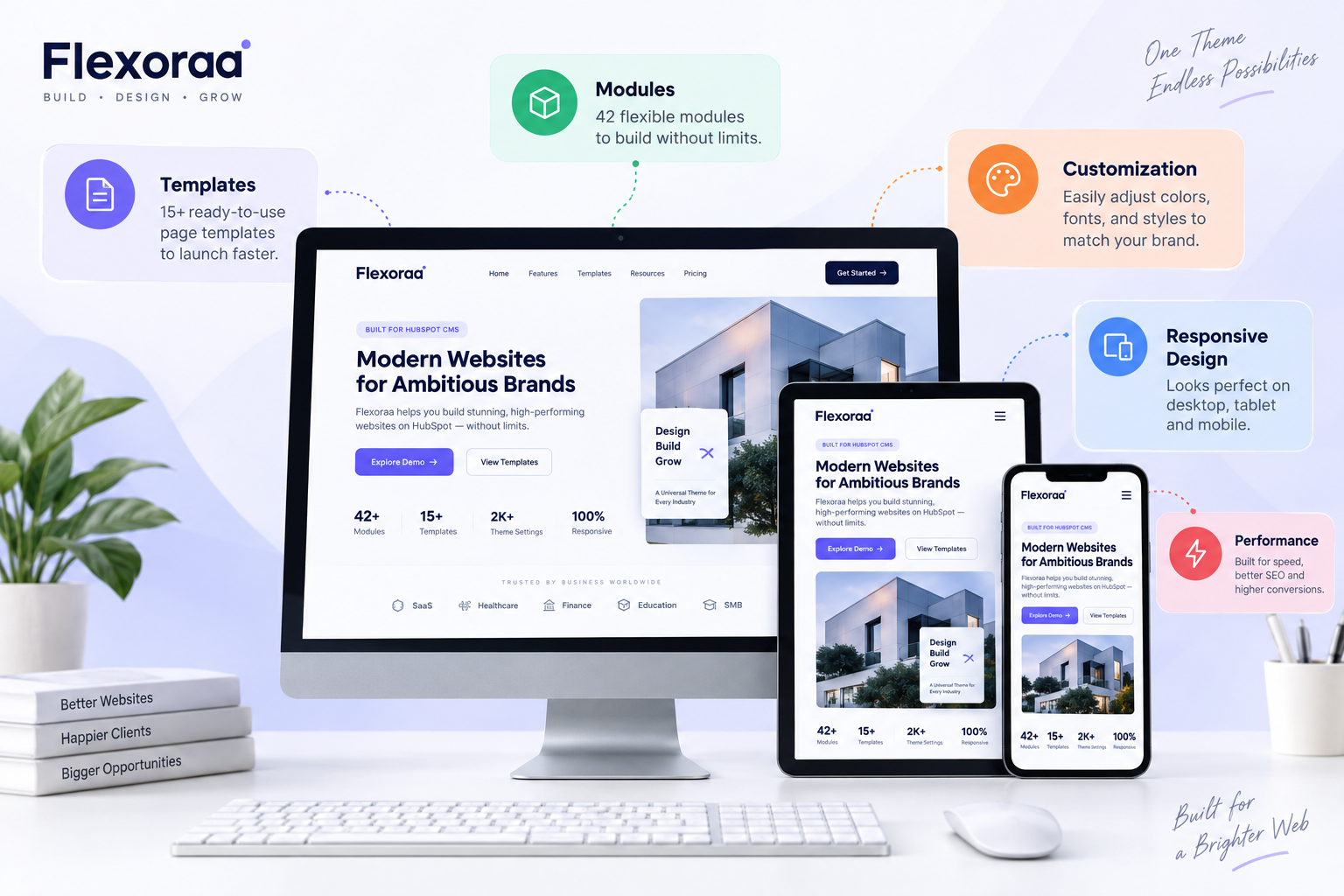
It provides a collection of HubSpot CMS modules, website templates, system templates, blog layouts, reusable sections, theme settings, and customization controls intended to give businesses a flexible starting point for building their websites.
For example, Flexoraa includes:
- 42 HubSpot CMS modules
- 15 website page templates
- 7 system page templates
- 4 blog post layouts
- Reusable sections
- Header and footer options
- Responsive controls
- Extensive theme settings
- Multiple layout and customization options
But Flexoraa shouldn't automatically be considered the right theme for every business.
The better approach is to use the checklist above.
Compare Flexoraa with the other themes you're considering.
Look at the templates.
Test the modules.
Explore the customization options.
Check the documentation.
Test the responsive behavior.
Consider the long-term requirements of your website.
If Flexoraa fits those requirements, you can then explore the live demo and see how the theme works in practice.
Explore the Flexoraa demo and evaluate the theme for yourself.
Frequently Asked Questions
What should I look for in a HubSpot website theme?
Look at the design, templates, modules, customization options, responsive behavior, global styling, performance, SEO foundation, documentation, support, updates, usability, and scalability.
Most importantly, compare those features with your actual website requirements.
Is a free or paid HubSpot theme better?
Neither is automatically better.
A free theme may be enough for a simple website, while a paid theme may provide more templates, modules, customization, support, documentation, or specialized functionality.
Choose based on the value and requirements of your project rather than price alone.
Can I customize a HubSpot theme?
Yes, but the amount of customization depends on the theme.
Before buying, check what you can change at the global, module, template, and page levels.
Don't assume that a theme described as "customizable" will provide the exact controls you need.
How do I know if a HubSpot theme is responsive?
Test the actual demo on desktop, tablet, and mobile.
Look for issues with navigation, typography, spacing, buttons, images, forms, and sections.
Don't rely only on marketplace screenshots.
Does a HubSpot theme affect SEO?
A theme can influence aspects of your website's structure, responsiveness, performance, and technical foundation.
However, a theme alone does not determine SEO performance.
Content quality, search intent, keyword targeting, internal linking, technical SEO, authority, and ongoing optimization are also important.
Should I buy a HubSpot theme or build one from scratch?
It depends on your requirements.
A pre-built theme can reduce design and development time and provide an established foundation.
Custom development can provide greater control and specialized functionality.
If your requirements fit within a flexible theme, buying one can be a practical way to launch faster.
How many modules should a HubSpot theme have?
There is no ideal number.
A theme with fewer but flexible modules can be more useful than one with dozens of highly specialized modules.
Focus on whether the available modules can help you build the pages and experiences your business needs.
How important is documentation when choosing a HubSpot theme?
Very important.
Good documentation can make setup, customization, troubleshooting, and future maintenance significantly easier.
It also gives you an indication of how seriously the theme developer treats the product after purchase.
How do I evaluate a HubSpot theme before buying it?
Explore the complete demo, review the templates and modules, test the theme on mobile, examine customization options, read the documentation, check updates and support, and compare everything against your actual website requirements.
Don't make the decision based only on the homepage.
Final Thoughts
Choosing a HubSpot website theme is about much more than finding a design you like.
The right theme should give your team a strong foundation while providing enough flexibility to build the website your business actually needs.
Before choosing a theme, evaluate:
Design + Templates + Modules + Customization + Responsive Design + Performance + SEO + Documentation + Support + Updates + Scalability
Most importantly, test the actual theme instead of judging it only by marketplace screenshots.
Explore the templates.
Test the modules.
Try the customization options.
Check the mobile experience.
Read the documentation.
Think about what your website will need in the future.
A theme becomes part of your website's foundation. Spending a little more time evaluating that foundation before you start building can save your business significant design, development, and maintenance work later.
If you're currently comparing HubSpot themes, use the checklist in this guide to evaluate your options objectively.
And if Flexoraa matches what you're looking for, explore the demo and see how it works for yourself.
View Live Demo